If you are using SharePoint for storing and sharing your data then I hope that you must be aware of the importance of data. What will you do if your SharePoint database suddenly got corrupt? Most probably, you will try to restore your data from backup. But wait, what if the backup is also not available? Don't stress there is still a way out. You can repair & restore your data by using an ultimate third party tool named Stellar Phoenix SharePoint Server Recovery. It repairs corrupt database and create a new mdf file.
Features:
- Repairs damaged SQL database: Since SharePoint store all the documents, lists and site collection in SQL database so if it got damaged, your website may become inaccessible. Stellar Phoenix Server recovery software fixes all the corruption and create a new mdf file. You can then incorporate repaired mdf file in to SharePoint server.
- Search option: If you forgot the location of your damaged mdf file then you can search for it in all the folders and drives using software 'Search' option.
- Complete Recovery: This option is use to repair damaged database. It scan the database for damaged tables and then repair them. The repaired table will be saved in a new mdf file.
- Document Recovery: Using this option you can recover all your website contents like wiki, blogs, documents etc.
- Display Preview: After scanning, you can see the preview of all the recoverable items.
- Generate Log Report: This software create log of all the activities performed during repair process. You can save the log report for future reference.
- Attach file option: After the completion of recovery process you can attach your repair database file back to server.
- SharePoint software support: Supports recovery of SharePoint 2010 & 2007.
Steps to repair corrupt SharePoint database:
1. After installing the software click on '
Complete Repair' option.
2. Click on '
Select File' button to select corrupt mdf file.
3. Now scan the file by clicking on '
Scan File' button.
4. After scanning, you can
see the preview of all repairable objects.
5. Repair the file by clicking on '
Repair' button.
6. After successful repair '
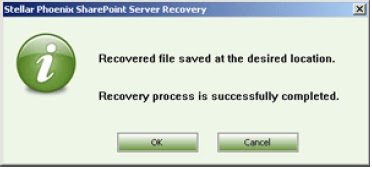
Recovery process successfully completed' message will appear, click
Ok.
7. Again 'Do you want to add...' message appear, click
Yes if you want to attach new mdf file to SharePoint Server.